
SonicRIP More printing options: Print to any windows printer
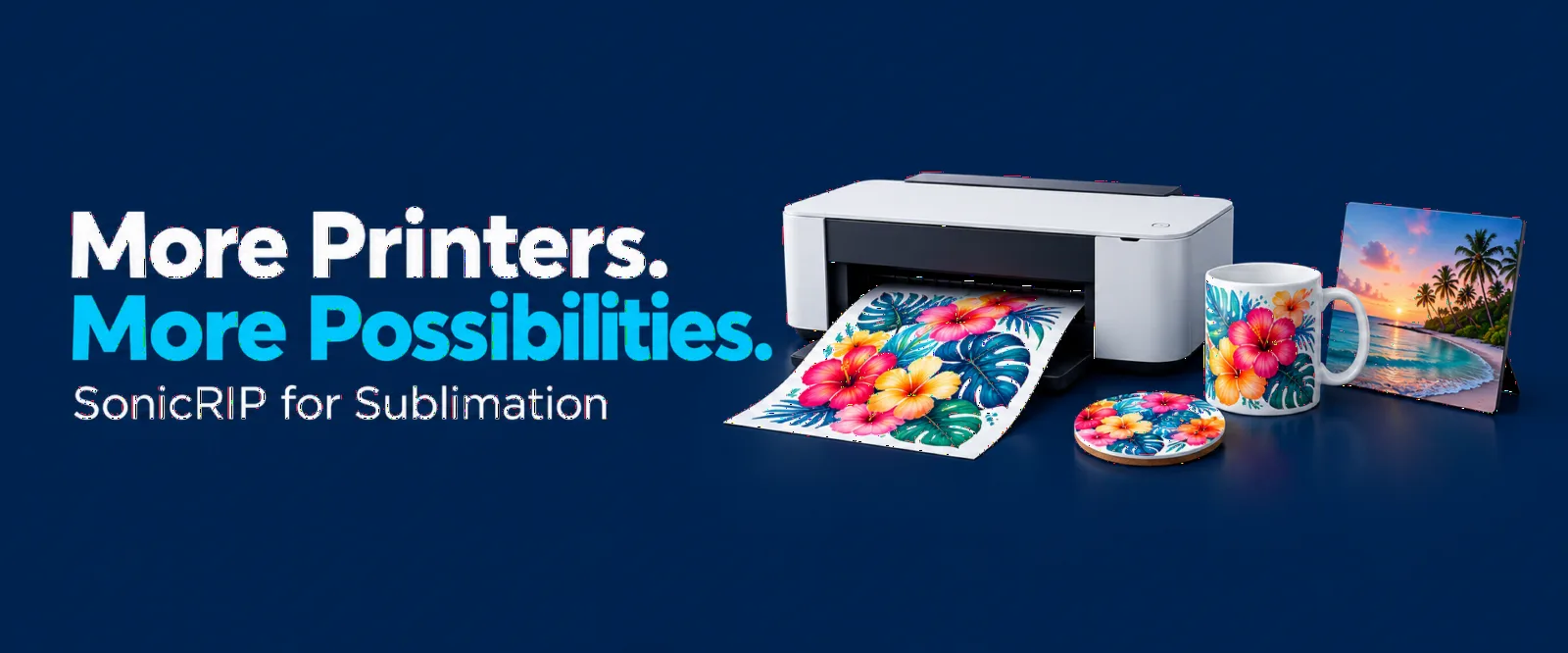
SonicRIP Now Prints to Any Printer: A Simpler Workflow for Sublimation and More
Your print shop may start with DTF, but your next order could be sublimation mugs, a photo panel or a sheet of printed inserts. Each project needs its own paper size, layout and output settings.
SonicRIP now lets you print through the standard Windows print dialog, extending your workflow beyond direct printing to the Procolored K13 Lite. You can prepare your artwork in SonicRIP and send it to another installed printer using that printer’s own Windows driver and color profile.
That means SonicRIP’s artwork preparation, layout and costing tools can now support your sublimation projects alongside your DTF work.
What Does “Print to Any Printer” Mean?
SonicRIP can send your layout to printers available through the Windows print dialog. Your printer’s driver handles its supported print settings and color profile.
This gives you a common place to prepare artwork, arrange designs and set up sheets, even when you use different printers for different jobs.
The printer still needs the correct ink, media and capabilities for the project. A standard inkjet printer does not become a sublimation printer simply by selecting sublimation mode.
Switch to Sublimation in One Click
SonicRIP’s sublimation mode sets up mirrored output with no white ink and CMYK-only printing. You can switch back to DTF whenever you need it.
For a shop that offers both processes, this helps keep artwork preparation in one application. Arrange your designs, choose the appropriate mode and review the output before sending the job.
When printing through another printer’s driver, check its settings too. If SonicRIP has already mirrored the artwork, avoid applying a second mirror in the driver.
Six Ways to Use Any-Printer Support
1. Prepare Personalized Mug Artwork
A customer orders mugs featuring different names and photographs. Rather than preparing each print separately, arrange the artwork together on a sheet sized for your sublimation printer.
Use SonicRIP’s sizing, duplication and alignment tools to organize the designs before printing. Where your mug supplier provides a template, use its dimensions to check the wrap size and placement.
This is useful for family gifts, staff mugs and small batches of personalized merchandise.
2. Create Matching Shirts and Gift Items
An event customer wants DTF shirts and matching sublimation gifts.
You can use the same source artwork across separate SonicRIP sheets, adjusting the size and layout for each product. Prepare the shirt transfers in DTF mode, then switch to sublimation for the compatible gift blanks.
Each process still needs its own output checks, but you can keep the artwork preparation and layout work in a familiar workspace.
3. Lay Out Coasters and Small Sublimation Designs
Small designs can leave a lot of unused space when printed individually.
For a coaster order, place multiple designs on a sheet, set their dimensions and use alignment or step-and-repeat tools to keep the layout organized. Leave enough room for trimming and handling.
SonicRIP’s mask shapes can also help frame artwork for a particular look. When printing to a blank that requires full coverage, follow its template and bleed requirements rather than relying on the mask alone.
4. Move Between Paper Sizes
One project fits on Letter paper. Another needs Tabloid, A3 or 13 × 19 inches.
SonicRIP supports Letter, Legal, Tabloid, A4, A3 and 13 × 19-inch paper, with portrait and landscape orientations. You can also set a custom roll width and length.
Choose a layout size that your printer actually supports, then confirm the matching paper size in its driver. This is particularly useful when moving between a small desktop printer and a larger-format setup.
5. Print Packaging Inserts and Other Paper Projects
Any-printer support also gives you a way to send ordinary paper layouts to a standard Windows printer.
For example, you could arrange finished artwork for thank-you cards, packaging inserts or promotional handouts, then print the sheet through your regular printer. Crop marks can help with trimming, while bleed settings help prepare artwork that extends beyond a cut edge.
For readable paper products, check that mirroring is turned off. These jobs need different output settings from sublimation transfers.
6. Print One Test Sheet Before a Full Batch
Before committing to a larger order, print a single sheet to check its size, layout and output settings.
SonicRIP lets you print one sheet or all sheets, with output options of 150, 300 or 600 DPI. Start with the sheet you need to verify, make any adjustments, then print the remaining layouts.
For sublimation, judge the finished color using an appropriately pressed sample—not just the appearance of the transfer paper.
Keep Artwork Preparation in the Same Workflow
Printing through another Windows printer does not mean starting your layout from scratch elsewhere.
SonicRIP gives you tools to crop artwork, apply shape masks, clean unwanted backgrounds, resize designs and arrange copies on a sheet. Low-resolution warnings help identify files that need attention before output.
You can also save a PNG at the exact paper size when a job needs to move into another printing application.
Choosing a higher output DPI does not restore detail missing from a small source image. Check the artwork’s effective resolution at its intended printed size as part of your preparation.
Include Sublimation in Your Costing
SonicRIP’s sublimation workflow includes paper and sublimation ink costs, with quotes and history available alongside your DTF work.
That helps you account for the printing materials used in an order instead of pricing from the artwork alone. When calculating the finished product’s selling price, also account for the blank, labor, pressing time, packaging and other business costs.
A Simple Sublimation Printing Workflow
Import your artwork. Check its dimensions and effective resolution.
Choose the paper size. Match the layout to paper supported by your printer.
Prepare the sheet. Arrange, resize and duplicate designs as needed.
Select sublimation mode. Review the mirrored layout and confirm that white ink is off.
Open the Windows print dialog. Choose the printer and check its paper, quality and color settings.
Print a test sheet. Confirm sizing and evaluate a finished sample before producing the full order.
Save the project. Keep the layout ready for revisions or repeat work.
More Printing Options in One Place
SonicRIP’s any-printer support gives you more ways to use the artwork and layouts you already prepare. From DTF apparel to sublimation gifts and everyday paper projects, you can organize the job in SonicRIP and send it through the appropriate Windows printer.
Keep reading

SonicRIP Mask Shapes for DTF Printing & Sublimation
Discover how SonicRIP’s nine editable mask shapes turn photos and artwork into designs for custom shirts, personalized gifts and sublimation projects. Explore six practical scenarios, learn how to frame and size your artwork, and see how adjustable masks simplify customer revisions without permanently cropping the original image.

Initial release
SonicRIP is Windows RIP software built for the Procolored K13 Lite. It prints the same quality as the stock software, and it adds better layout and cropping tools, optional shape-aware nesting, batch and queue printing, print history with ink and cost tracking, Clean Nozzle, and a short test strip. You can try it free for 7 days on one computer, then buy it at sonicrip.com.
0 comments
Sign in to leave a comment.