
SonicRIP Mask Shapes for DTF Printing & Sublimation
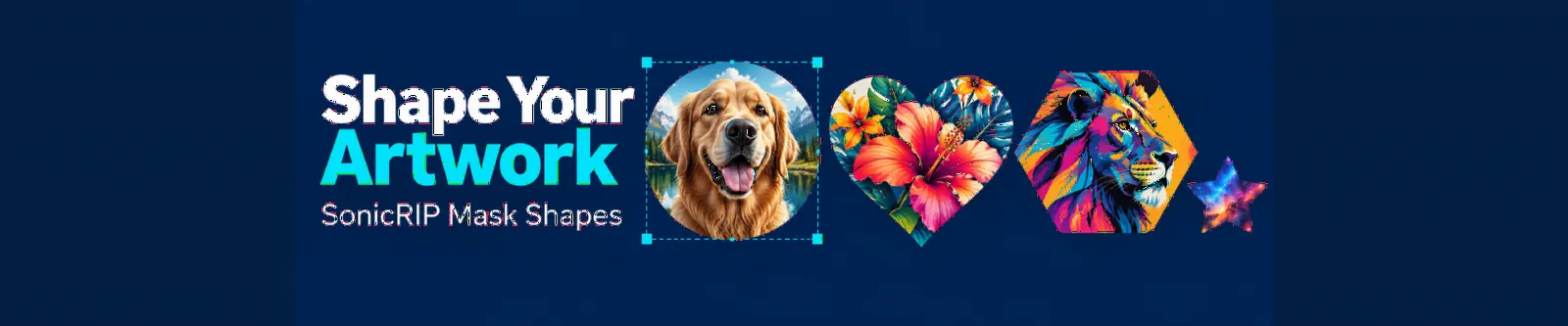
Give Your Artwork a New Shape with SonicRIP Masks
A customer sends you a rectangular photo, but wants a round design for a shirt. A team logo needs to fit inside a badge. A portrait would look better inside a heart for a personalized gift.
With SonicRIP’s Mask Shapes, you can shape your artwork directly inside your print workflow. Choose a shape, adjust its position and size, and set the exact finished dimensions. You can edit or remove the mask later, giving you room to experiment without committing to a permanent crop.
What Does a Mask Do?
A shape mask controls which parts of your artwork remain visible. Picture placing a window over an image: you see the artwork inside the window, while the area outside it is hidden.
SonicRIP includes nine mask shapes:
Circle
Oval
Square
Rounded rectangle
Hexagon
Octagon
Diamond
Heart
Star
Drag-and-resize handles let you adjust the mask around your artwork, while exact sizing helps you prepare the design for its intended placement.
Six Ways to Use Masks in Your Print Shop
1. Turn a Photo into a Round Shirt Design
A customer wants a pet photo on a T-shirt, but the original image includes a lot of distracting scenery.
A circle or oval mask lets you frame the pet and hide the outer portions of the photo. Adjust the mask until the face sits comfortably inside the shape, then set the finished size for the shirt.
This is useful for pet portraits, family reunion shirts and memorial designs where the subject should be the focus.
Tip: A shape mask hides everything outside its boundary. It does not automatically remove the background around the subject inside that boundary.
2. Create Consistent Left-Chest Graphics
For staff shirts or club apparel, consistency matters. A collection of images can look uneven when every file has a different shape or amount of empty space.
Use a circle, square or rounded rectangle mask to give each graphic a consistent outer shape. Set the same finished dimensions, then check that the artwork inside each mask has a similar visual balance.
This works particularly well when preparing a coordinated set of designs from different source images.
3. Make Personalized Holiday and Event Gifts
A heart-shaped photo can become the centerpiece of a Valentine’s Day shirt or anniversary tote. A star can frame a birthday portrait or an award-themed graphic.
Masks make it easy to try different treatments using the same image. If the heart crops too much of a couple’s photo, adjust it or switch to an oval. You can revise the mask later as the design develops.
For small custom orders, that flexibility helps you explore options without preparing a separate cropped file for every idea.
4. Build Badge-Style Team and Club Designs
Hexagons, octagons and diamonds give artwork a distinct geometric boundary. They can work well for gaming groups, school clubs, automotive events and team graphics.
For example, you could frame a mascot illustration inside a hexagon to create a compact badge-style design. Position the mask carefully so important details remain visible.
The mask defines the artwork’s silhouette; any border, lettering or additional decoration would need to be part of the artwork or added separately.
5. Shape Artwork for Sublimation Projects
Masks are also useful when preparing sublimation artwork. A circular image may suit a round coaster layout, while a rounded rectangle can give a photo panel a softer-looking boundary.
Set the mask to the dimensions your project requires, then check the layout against the blank manufacturer’s template.
For products requiring full-bleed coverage, account for the required bleed. The visible shape alone does not replace a production template or alignment check.
6. Handle Last-Minute Customer Changes
You have prepared a round photo design, and the customer asks, “Could we see it as a square instead?”
Because SonicRIP masks can be edited or removed later, you can change the framing without starting with a new source image. Adjust the shape, review the composition and confirm the finished size before printing.
That is especially useful for personalized orders where the customer’s preferred crop or placement changes during approval.
A Simple Masking Workflow
Import your artwork. Choose an image with enough resolution for the intended print size.
Choose a mask shape. Match the shape to the design and its placement.
Adjust the framing. Use the drag-and-resize handles to keep faces, text and important details visible.
Set the finished size. Check your dimensions in inches or millimeters.
Review before printing. Inspect the visible edges and, for DTF, check the white-layer preview.
Save your project. Keep the layout available for later changes or repeat orders.
A Better Shape Starts with Good Artwork
Masking changes the outline of a design; it does not add image detail. If a photo has a low effective DPI at its intended size, shaping it into a circle will not solve that resolution issue.
It is also worth checking what remains inside the mask. Unwanted background areas or faint stray pixels may still need attention. SonicRIP’s Clean Artwork and Hidden Pixels View provide separate tools for inspecting and cleaning those areas.
Whether you are framing a portrait, preparing matching chest graphics or creating a gift design, Mask Shapes gives you control over how your artwork fits the finished product—right inside SonicRIP.
Keep reading

SonicRIP More printing options: Print to any windows printer
Print sublimation layouts and more through Windows with SonicRIP. Explore mirrored output, custom paper sizes, artwork tools and print costing.

Initial release
SonicRIP is Windows RIP software built for the Procolored K13 Lite. It prints the same quality as the stock software, and it adds better layout and cropping tools, optional shape-aware nesting, batch and queue printing, print history with ink and cost tracking, Clean Nozzle, and a short test strip. You can try it free for 7 days on one computer, then buy it at sonicrip.com.
0 comments
Sign in to leave a comment.